

FOSSBilling uses Twig for email templates, so you can control both the wording and the presentation of system messages.
Managing Templates
Section titled “Managing Templates”Access Email Settings
Section titled “Access Email Settings”- Go to Configuration → Settings
- Click Email
You'll see every installed email template, along with its subject, owning module, and enabled status.
Generate Missing Templates
Section titled “Generate Missing Templates”If templates are missing, click Generate templates at the bottom of the page to recreate them.
Editing Templates
Section titled “Editing Templates”- Click the Edit button on any template
- Modify the subject and content
- Save your changes
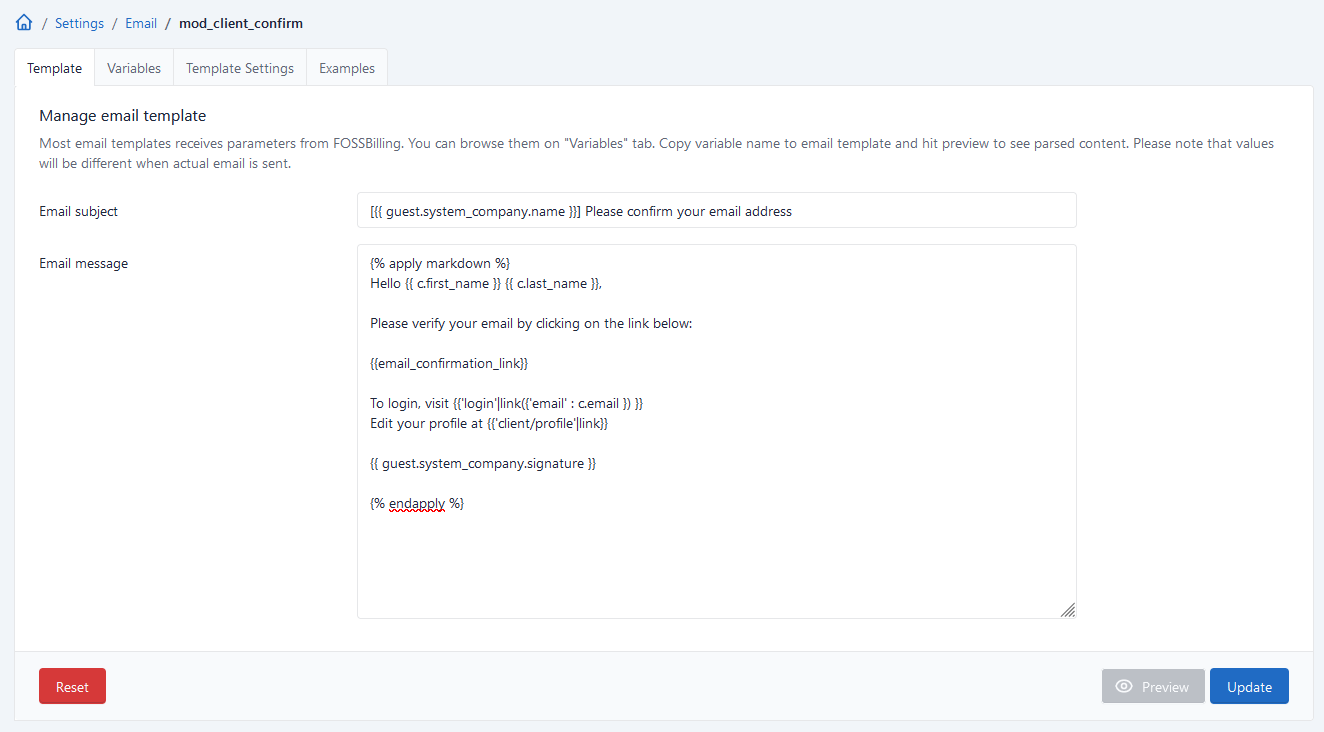
Available Variables
Section titled “Available Variables”Templates can use any variables passed by the module. Common ones include:
staff.name— Staff member nameclient.first_name— Client first nameguest.system_company.name— Your company nameguest.system_company.signature— Your email signature
See Twig Filters & Functions for all available filters.
Template Examples
Section titled “Template Examples”Markdown Format
Section titled “Markdown Format”Default templates use Markdown for simple formatting. Wrap your content with the apply markdown filter:
\{% apply markdown %\}Hi \{\{ staff.name \}\},
If you are reading this email, FOSSBilling is **configured properly** and is **able to send emails**.
\{\{ guest.system_company.signature \}\}\{% endapply %\}
Remove the backslashes when using this in your actual template.
HTML Format
Section titled “HTML Format”For full control, use HTML:
<!DOCTYPE html><html><head> <meta charset="utf-8"> <style> body { font-family: Arial, sans-serif; font-size: 14px; color: #333333; } h1 { font-size: 24px; margin: 0 0 20px; } .signature { font-style: italic; color: #999999; margin-top: 20px; border-top: 1px solid #cccccc; padding-top: 10px; } </style></head><body> <h1>Test email from {{ guest.system_company.name }}</h1> <p>Hi {{ staff.name }},</p> <p>If you are reading this email, FOSSBilling is <strong>configured properly</strong>.</p> <p class="signature">{{ guest.system_company.signature }}</p></body></html>Before and After
Section titled “Before and After”Default (Markdown): 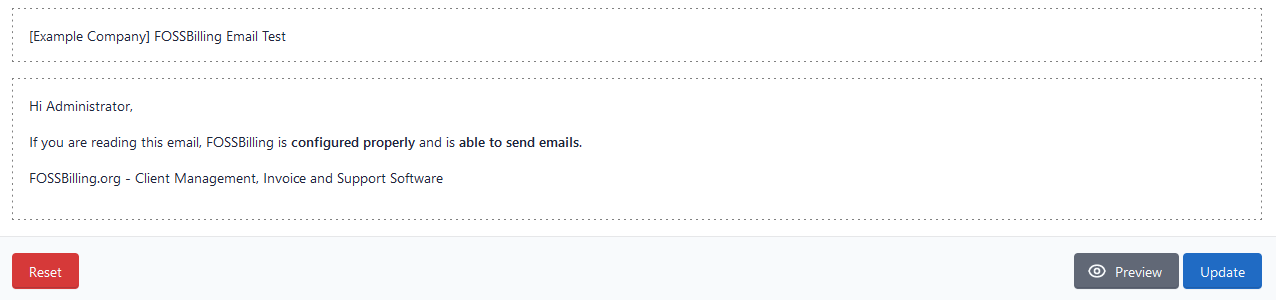
Custom HTML: 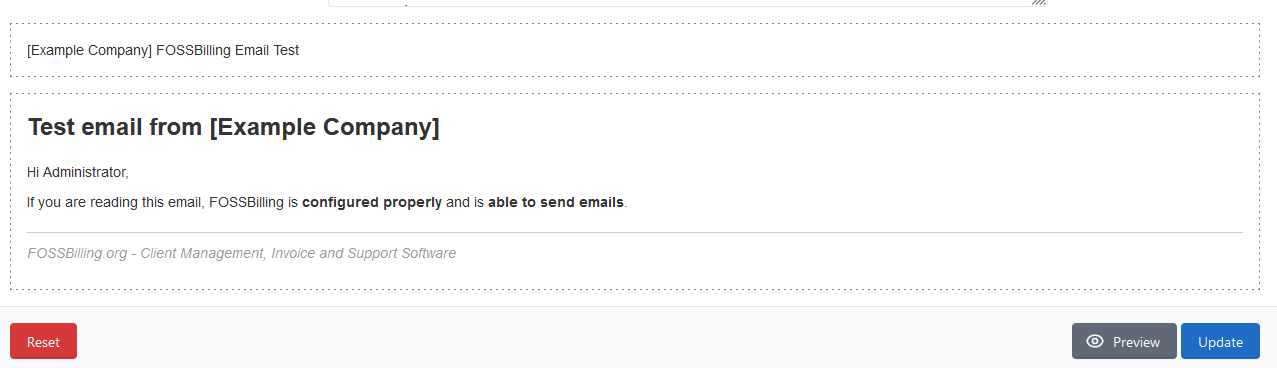
Storage Location
Section titled “Storage Location”Templates exist in two places:
- Module source —
modules/{Module}/html_email/ - Database —
email_templatetable (copied there when module is installed)
After installation, edit templates through the admin panel or directly in the database. Changes made only to the module files will not apply until you regenerate the templates.
Limitations
Section titled “Limitations”- Variables only appear in the Variables tab after an email has been sent at least once
- Email client HTML support varies — test with popular clients
- Inline CSS works more reliably than
<style>blocks
Example Module
Section titled “Example Module”See the example module for more template examples.